Join or Create a Team
To get your team up and running in Microsoft Teams, cre...








Rules allow you to move, flag, and respond to email messages automatically. You can also use rules to play sounds, move messages to folders, or display new item alerts.
The easiest and most common rule to create is one that allows you to move an item from a certain sender or with certain words in the subject line to another folder. You can create this rule directly from a message you’ve already received.
1. Right-click a message in your inbox or another email folder and select Rules.
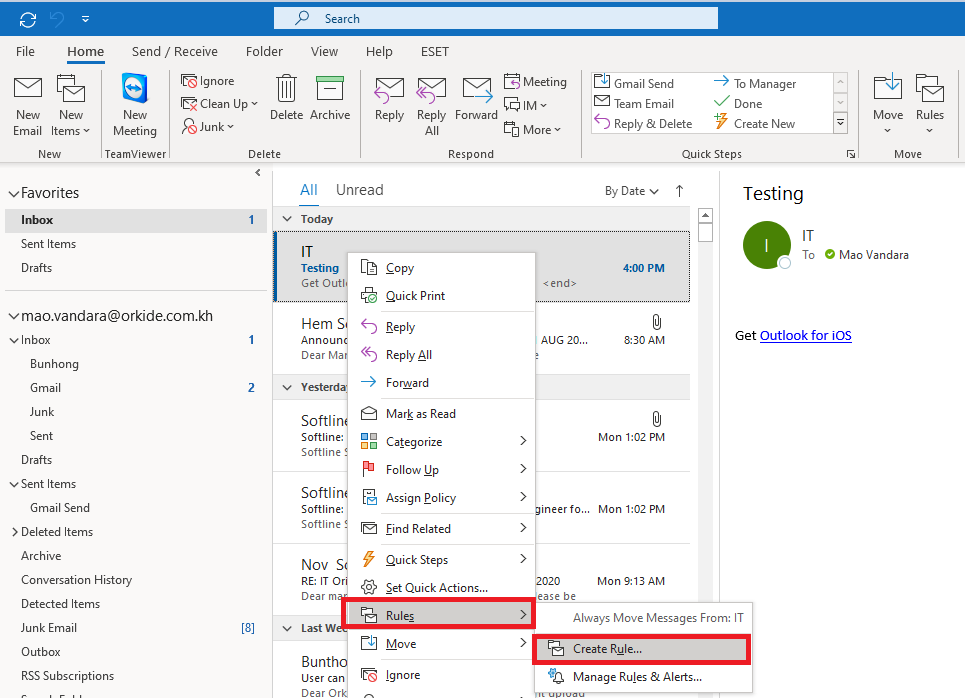
2. Select one of the options. Outlook automatically suggests creating a rule based on the sender and the recipients. To view more options, select Create Rule.
3. In the Create Rule dialog box, select one or more of the first three checkboxes.
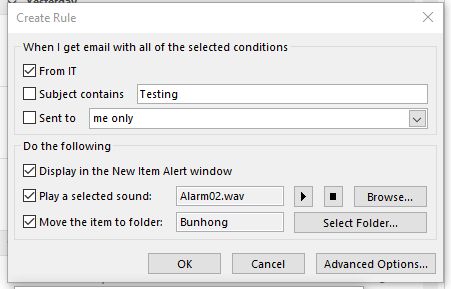
4. In the Do the following section, if you want the rule to move a message to a folder, check the Move item to folder box, then select the folder from the Select Folder dialog that pops up, and then click OK.
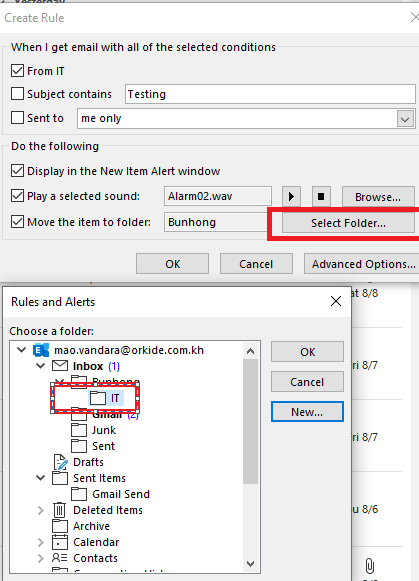
Click OK to save your rule.
Note: If you want to run the rule on messages you’ve already received, check the box on the confirmation dialog that pops up and then click OK.