Show your screen during a meeting
In Microsoft Teams, you can show your desktop, a specif...








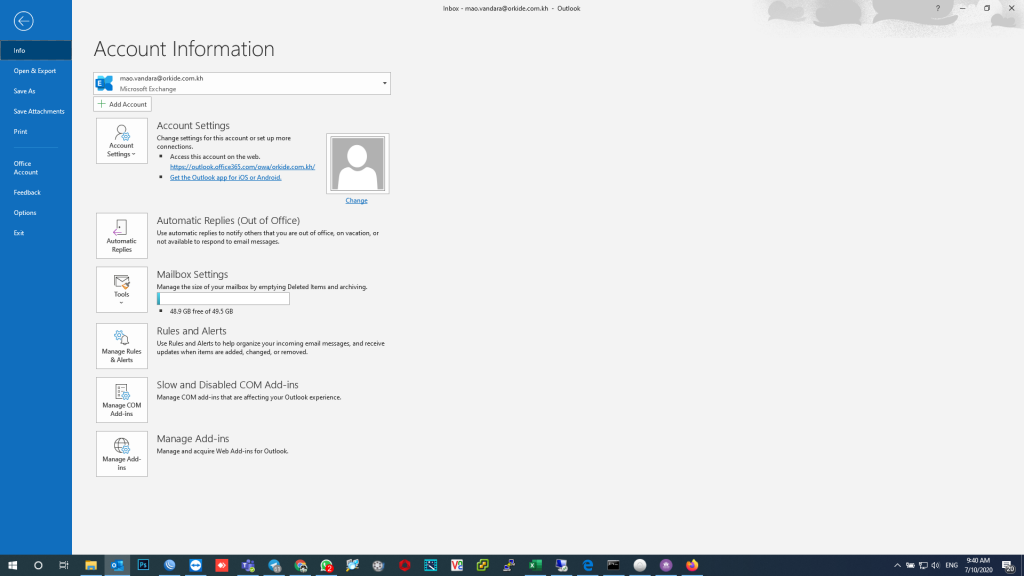
1. First, open the desktop Outlook application and select File in the menu. then select Options.
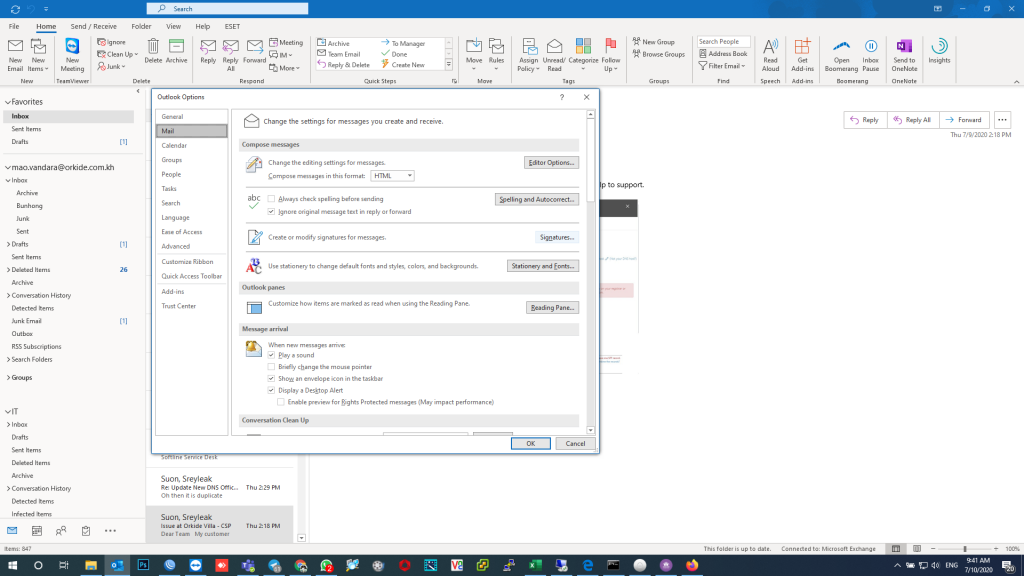
2. In the Outlook Options window, select Mail from the navigation pane. In this Window, select the Signatures button to enter the Signatures configuration window.
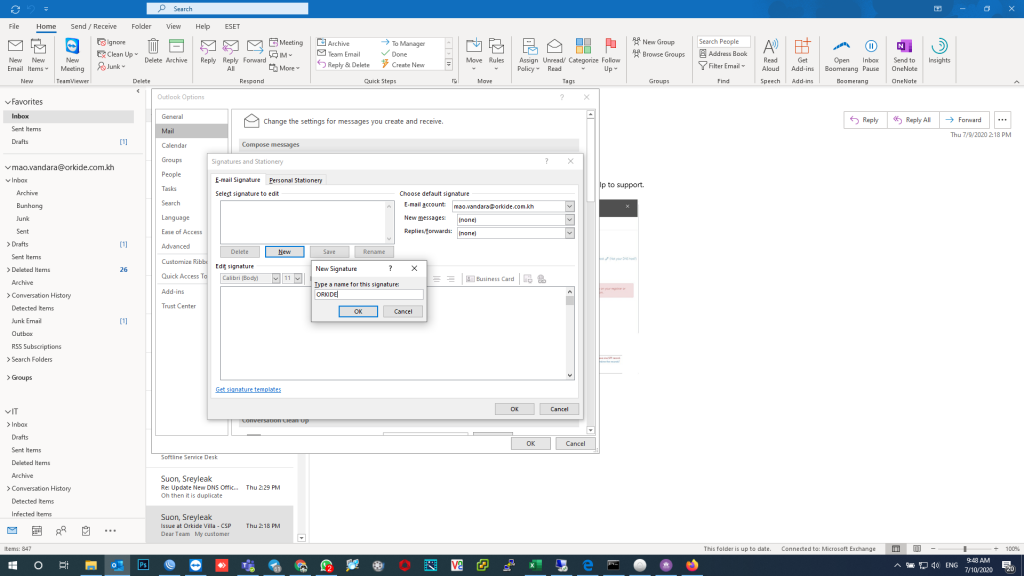
3. In the Signatures and Stationery window, select New to create a new signature. Give the signature a relevant name. You can create multiple signatures. For example, create one for your personal emails and one for your work emails.
4. In the edit pane, you can create your email using a simple editor tool. This tool lets you use any font style or even import pictures into your signature if you like.
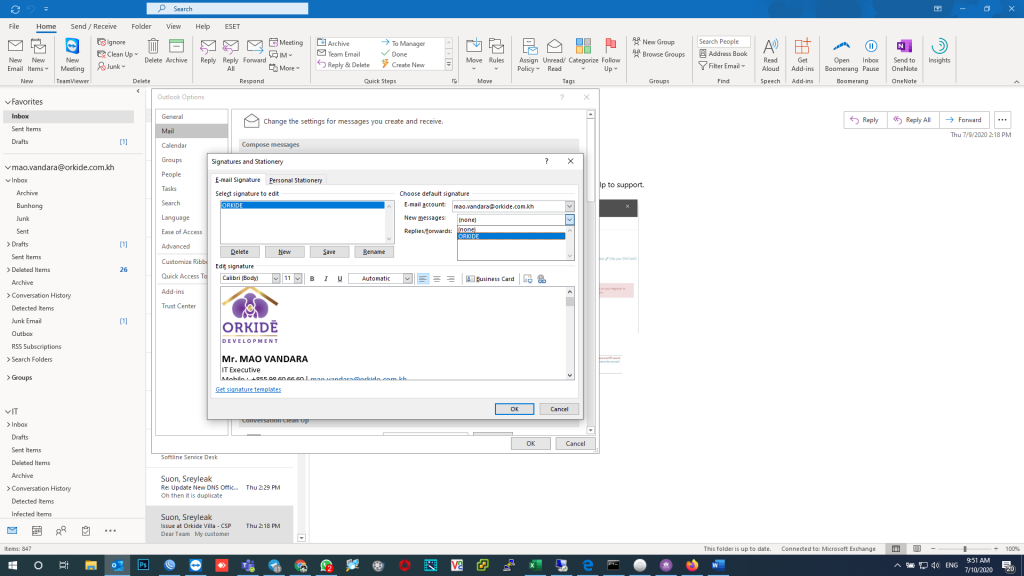
5. Under the Choose default signature section, you can use the New messages or the Replies/Forwards messages drop-down menus to select whether this signature will be used for new messages, when you reply to or forward a message, or both. Select OK when you’re done to save your new signature.
Link Download: ORKIDE Email Signature Template