How to Add COVID-19 Vaccine Pass to iPhone wi
Apple now supports the ability for verifiable COVID vac...








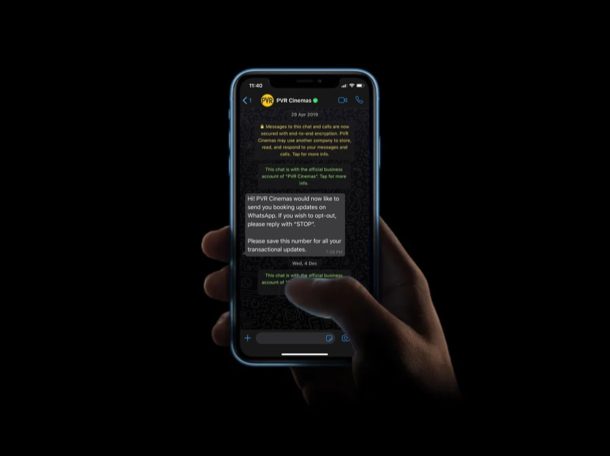
Have you been looking forward to using a dark-themed WhatsApp on your iPhone? You’re certainly not alone, but that wait has finally come to an end, as WhatsApp now fully supports the Dark Mode feature.
Interested in checking out the visual changes that WhatsApp Dark Mode has to offer on your iOS device? Then read on!
How to Use Dark Mode in WhatsApp for iPhone & iPad
WhatsApp’s dark theme works in tandem with your iOS system settings. This means, once you enable Dark Mode on your iOS device, WhatsApp will automatically switch to the dark theme. Additionally, you need to make sure you’ve updated WhatsApp to take advantage of this feature. So, simply follow the steps below.

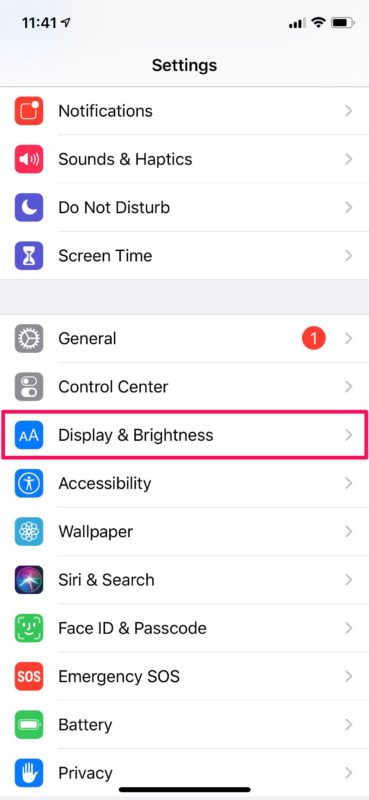
2. Now, scroll down and tap on “Display & Brightness”
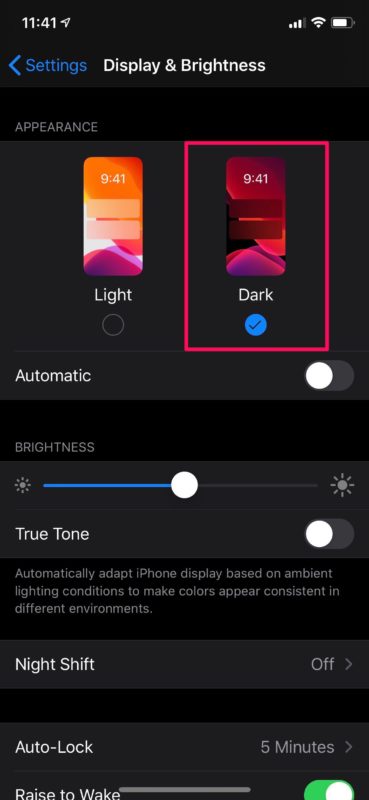
3. Here, choose “Dark” under Appearance, as shown in the screenshot below.
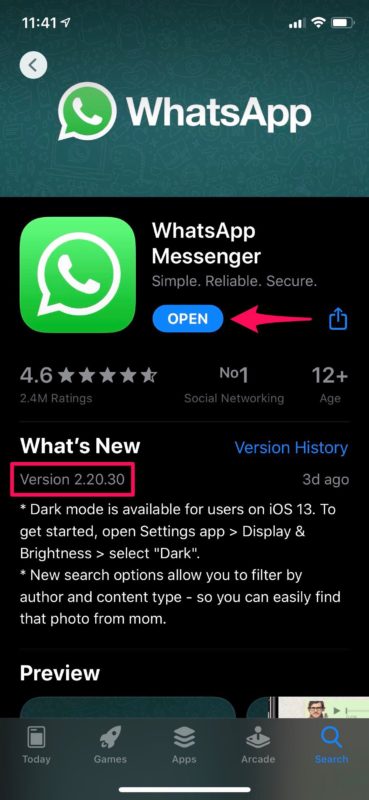
4 For the next step, head over to WhatsApp’s App Store page from your iOS device. Make sure you’ve updated the application to Version 2.20.30 for Dark Mode to work.
5. Now, simply open up WhatsApp and you’ll notice the dark theme right away, as shown below.

There you go. It’s that easy to set up and use Dark Mode in WhatsApp on your iPhone.
The dark mode that’s available on the iOS version of WhatsApp is more like a pure black theme and looks quite different from what’s offered on Android devices.
If you’ve set your iOS device to switch between light and dark modes automatically depending on the time of the day, your WhatsApp theme will switch between both modes accordingly. Unfortunately, there’s no manual setting within the application to switch between light and dark modes, unlike Android.
If you use WhatsApp as your primary messaging application on your iPhone with an OLED display, switching to the Dark Mode will help you save some battery life. This is due to the fact that an OLED screen turns the individual pixels off entirely to display the black color, thereby saving energy in the process.