How to make one click on a link file share
How to make one click on a link file share 1. Go to...








Want to clean up your Chrome extensions a bit? Perhaps you have an unneeded extension or two installed in Chrome and you want to remove them.
Deleting and removing extensions from the Chrome browser on a Mac or PC is really easy, as you’ll soon see.
How to Remove Extensions from Google Chrome
Here’s how you can delete extensions from the Chrome web browser on a Mac or PC:
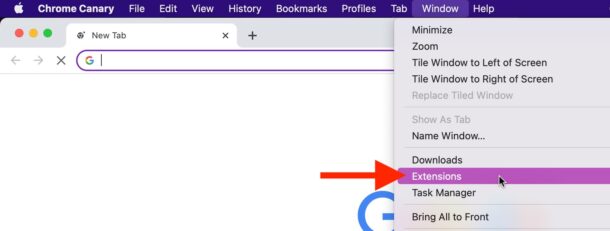
1. From the Chrome web browser, pull down the “Window” menu and choose “Extensions”, alternatively go to chrome://extensions/ in the URL bar
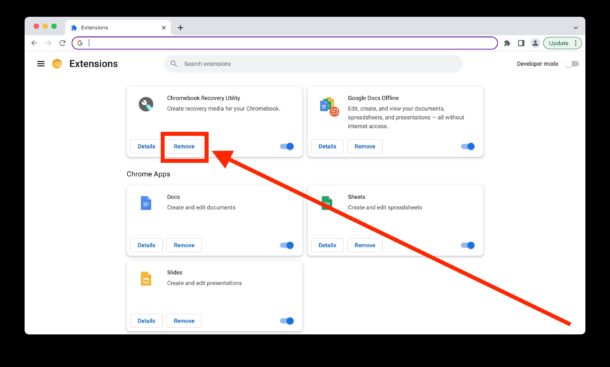
2. Locate the extension you want to delete
3. Click the “Remove” button for that extension
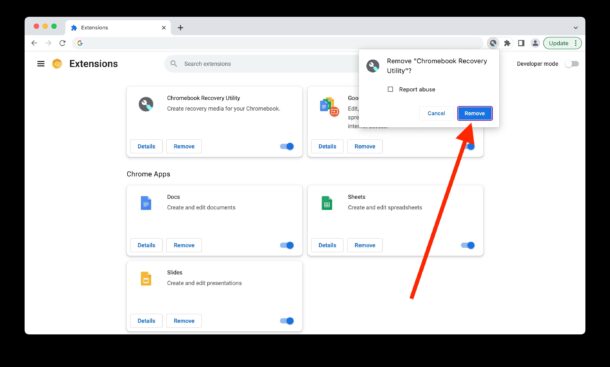
4. Confirm that you want to remove that extension from Chrome
5. Repeat with other extensions you want to delete or remove from Chrome as needed
6. Close out of the Extensions window when finished
The extension will be removed immediately, there is usually no need to restart the browser to have the extension removed.
For some extensions, like content blockers, you may need to quit and relaunch the browser or open a new browser window, for the extension to no longer be active in that browser session.
You can always go back and reinstall the extensions into Chrome again if you want to, either through the extension developers website or through the Chrome Web Store Extensions section.
Again this works the same on Mac and Windows (and Linux for that matter).